 Keeper

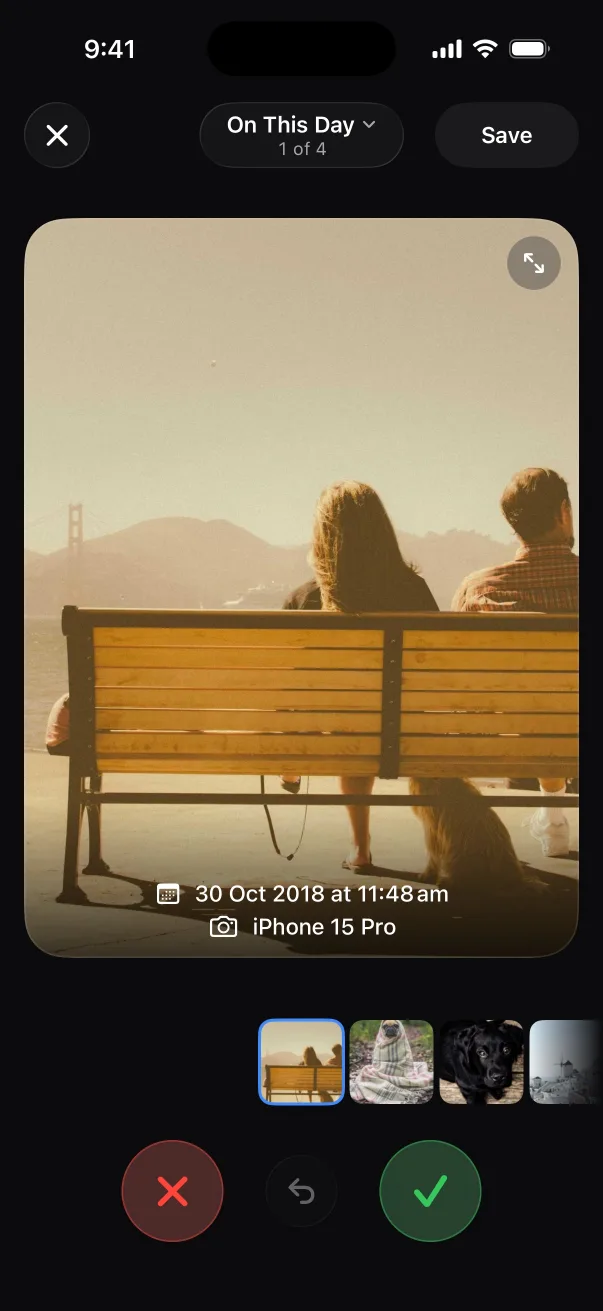
On This Day
Rediscover the photos you took on today's date.
Every day Keeper gathers photos from this date in earlier years. Keep the memories, clear the misfires around them.
Swipe photo cleaner for iPhone
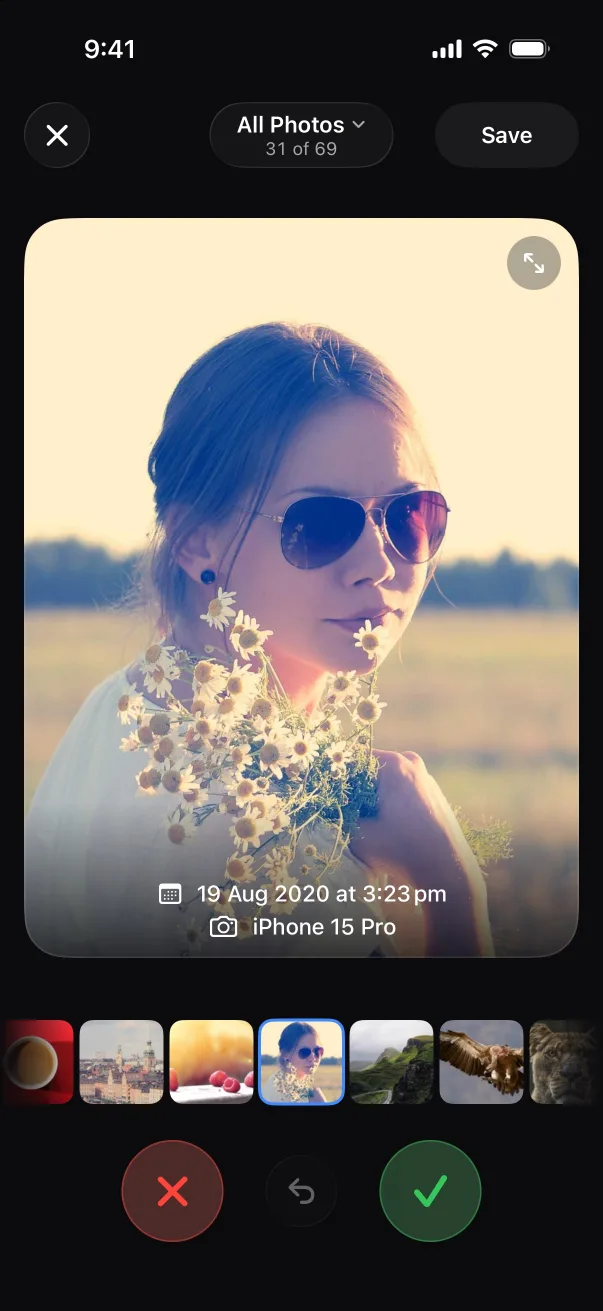
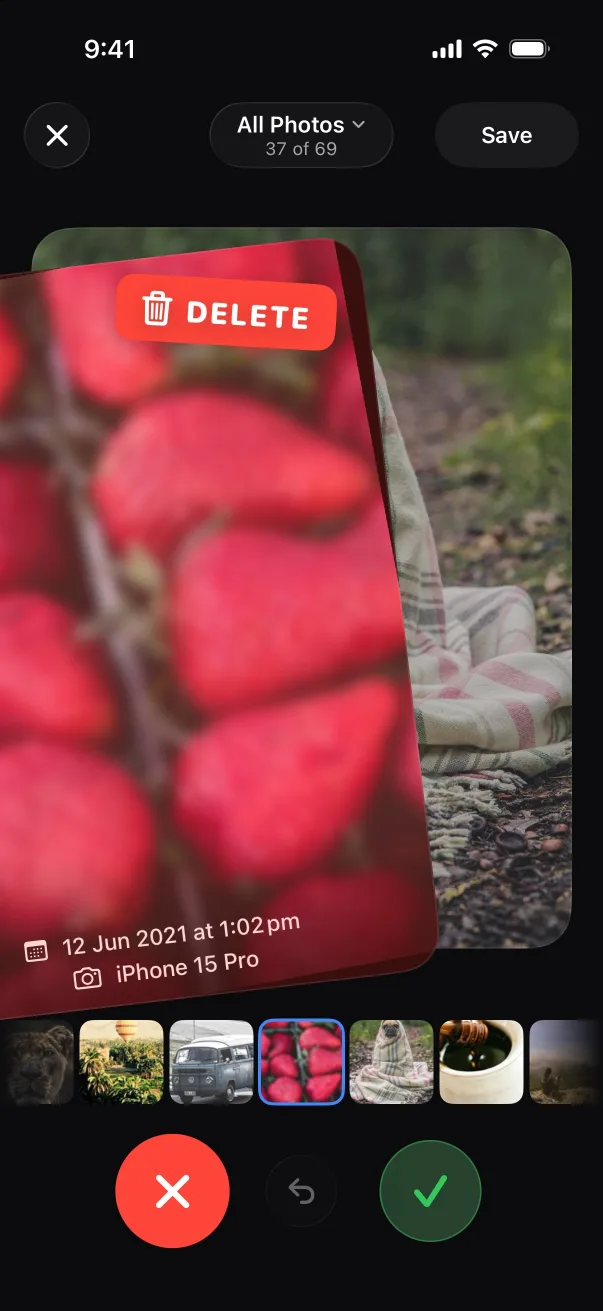
Keeper shows your photos one by one, full screen. Swipe right to keep. Swipe left to delete. Clear hundreds of shots in one sitting and see exactly how much storage you got back.
Nice sweep!
0 kept, 0 deleted
Try it: drag a photo, use the buttons or your arrow keys.
How it works
Scrolling a full camera roll and tapping delete one photo at a time is how a cleanup stalls after ten minutes. Keeper turns it into a single decision per photo, made with your thumb.
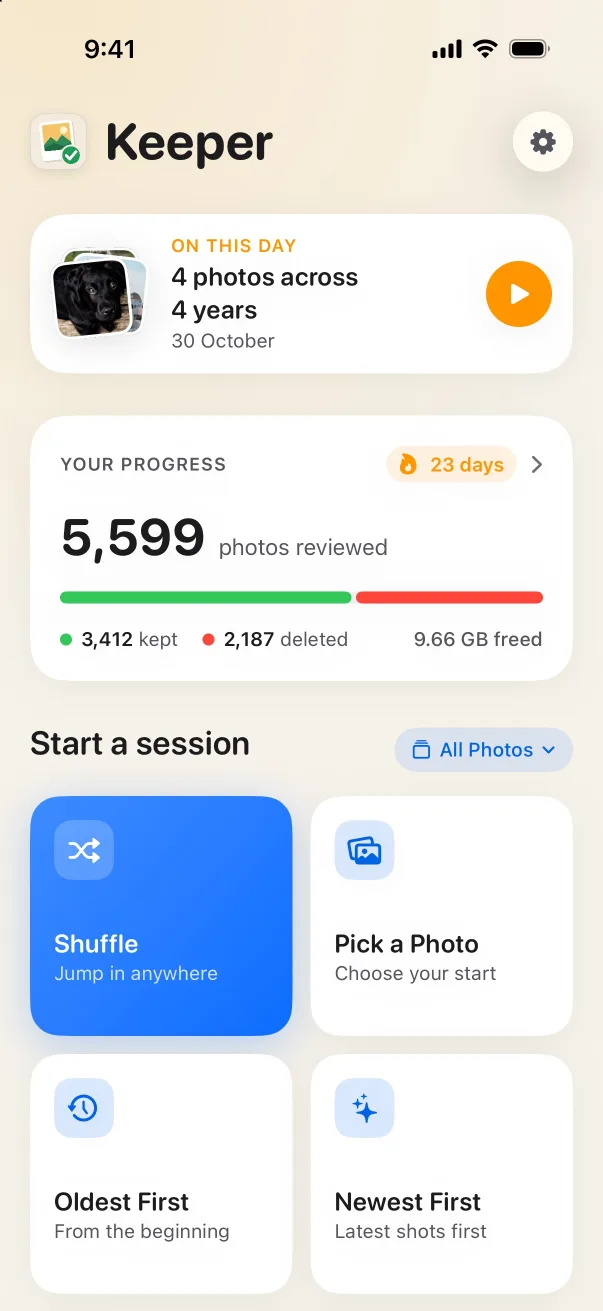
Shuffle, start from a photo you pick, go oldest first or newest first. Narrow it to one album when you only want to tidy part of your library.
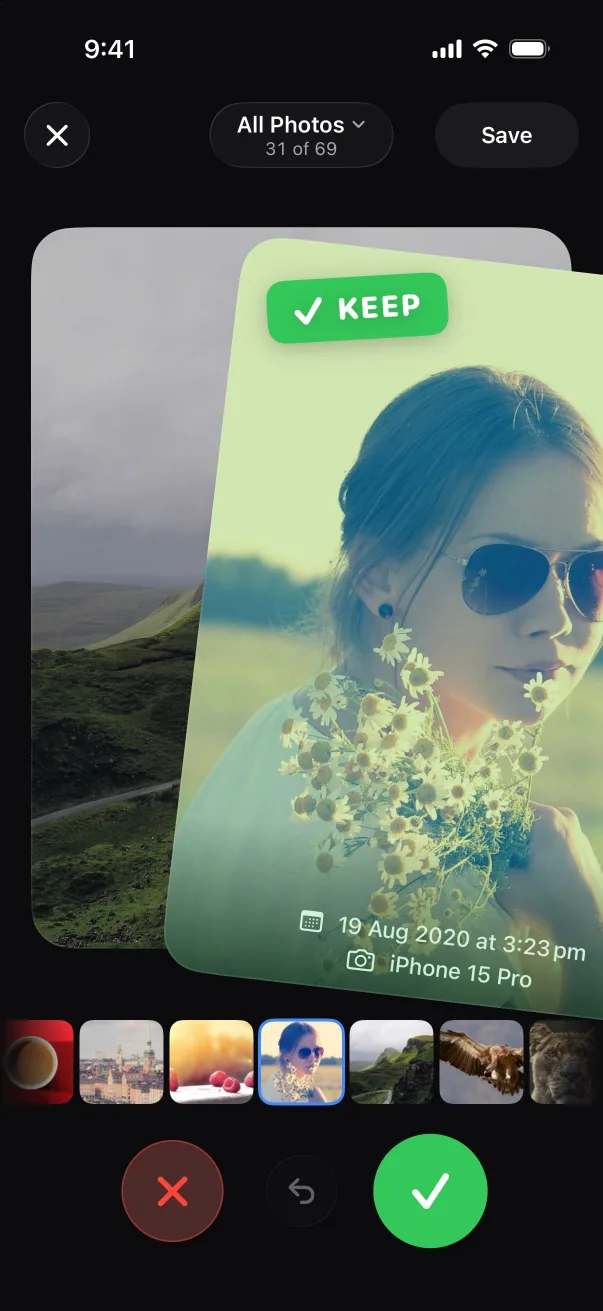
Each photo fills the screen with its date, place and camera. A light tap tells you when you've crossed the keep or delete point. Swiped the wrong way? Undo slides it back.
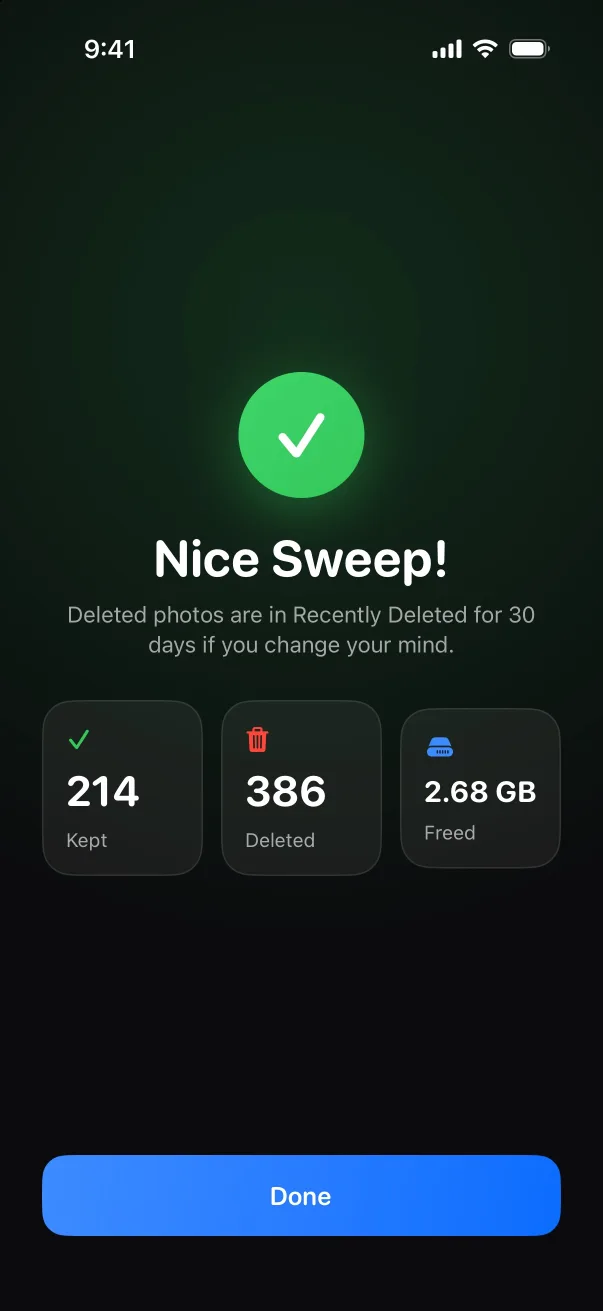
Keeper hands the deletions to iOS in one go, and you confirm them once. Then you see how many photos you kept, how many you cleared and how much storage came back.
Made for the photo
The swipe screen goes dark so the picture is the only thing you look at. Live Photos play with a long press, videos play inline, and a strip of thumbnails lets you jump back to any photo in the session to change your mind.
Features
On This Day
Every day Keeper gathers photos from this date in earlier years. Keep the memories, clear the misfires around them.
Your progress
A daily streak and lifetime stats keep the cleanup going. Example figures from the app's demo data.
Start anywhere
Or browse by month and clear one month at a time.
Scope a session to Screenshots, a trip or any album you choose.
Five minutes on the bus counts. Resume from Home next time.
English, Spanish, French, German, Japanese, Korean, Chinese and more.
Private by design
Keeper works inside your Photos library through Apple's own PhotosKit. It never uploads, copies or sends your photos anywhere, and there's no account to create. Deleting uses the same system dialog as the Photos app, so iOS always asks before anything goes.
Read the privacy policyQuestions
Keeper shows the photos and videos in your library one at a time, full screen. Swipe right to keep one and left to delete it. Your choices are queued while you swipe, and nothing is removed until you tap Save. When you save, iOS asks you to confirm the deletion.
Yes. While you swipe, tap undo to bring the last photo back. After you save, deleted photos go to the Recently Deleted album in the Photos app, where you can recover them for 30 days. Here's how to recover them.
No. Keeper works inside your Photos library on your iPhone or iPad through Apple's PhotosKit. It doesn't upload, send or copy your photos, and there's no account to create.
Yes. Keeper uses your normal Photos library, so it works the same way the Photos app does. With iCloud Photos on, a photo you delete is deleted on all your devices that use iCloud Photos, and it stays in Recently Deleted for 30 days. More on that in deleting photos from iPhone but not iCloud.
Yes. You can limit a session to a single album, browse your library by month and clear one month at a time, or start from your oldest photos, your newest photos, a photo you pick, or a random spot.
No. Keeper doesn't pick photos for you. It puts each photo in front of you so you decide, which is quicker than scrolling and safer than an automatic cleaner. For exact duplicates, the Photos app has its own Duplicates album under Utilities.
Yes. Keeper runs on iPhone and iPad with iOS or iPadOS 18 or later.
Keeper is free to download and needs a weekly or yearly subscription to use. Current prices for your country are shown on the App Store and in the app. You can cancel any time in your Apple Account settings.
Ten minutes of swiping clears more than an afternoon of scrolling. Start with today's date, or your oldest photos, and watch the storage come back.
Download on theApp StoreFree to download. A subscription is needed to use the app.

Point your iPhone camera here